The production rollout date has been updated to June 16. 2026.
Description
Organizations create large volumes of machine accounts (such as service accounts, bots, and automation identities) often outside of Identity Security Cloud. This leads to inconsistent processes, weak approval discipline, and limited visibility between requested and provisioned accounts.
SailPoint Identity Security Cloud now provides a guided path for requesting, approving, and provisioning new machine accounts for connected sources. It uses subtype-specific forms and mappings with auditable approval configuration and clear request tracking. This provides a central place to run machine account creation under the existing governance patterns used elsewhere in ISC.
New Capabilities
- Subtype admin configuration: Select or create forms for each subtype and configure attribute mappings to satisfy connector requirements before provisioning.
- Approval settings per subtype: Toggle approvals for creation requests, configure multi-step serial routing with specific approvers (such as the Requester’s Manager, Governance Group, or Source Owner), and optionally require comments.
- Entitlement-gated creation: Provides a dedicated entitlement when creation is enabled for a subtype, ensuring only authorized users can request machine accounts.
- New machine account + access request flow: Users can initiate machine account creation by choosing a source and subtype, completing the form, and optionally selecting additional entitlements.
- Request visibility: Requesters can track progress in the Account Requests tab under My Requests. Reviewers have a dedicated tab under Approvals with contextual tabs for details, forms, entitlements, and comments.
- Provisioning and credentials: Upon successful provisioning, a password is generated based on the connector policy, securely stored in the SailPoint Parameter Store, and made available only to the account owner.
Problem
Machine accounts are often created using external tools, custom portals, or manual steps. When approvals do exist, they rarely match the governance standards applied to human access requests. This results in inconsistent provisioning, gaps between policy and execution, and limited traceability in ISC for new accounts. Organizations need to bring machine identities under full lifecycle governance, which requires controlled creation rather than just visibility into existing accounts.
Solution
Machine account creation is configured per machine account subtype on the source where accounts will live. After setup, entitled users submit requests through a guided flow; optional approvals and optional additional entitlements follow the request approval process that your administrators define. Passwords can be configured and generated from the Password Settings page and stored securely in SailPoint Parameter Storage for account owners to use.
Demo Video
 Below is a step-by-step guide to help you get started.
For administrators: configure machine account creation
Step 1. Go to Admin → Connections → Sources, then open the source where machine accounts will reside.
Step 2. In Machine Accounts, select Account Subtypes.
Step 3. Create a new machine account subtype or edit an existing one

Step 4. On the Details tab, enter or update the subtype information and select Save.
Step 5. In Account Creation, open the Creation Form and click Start Setup:
- In the Account Request Form, select the form users will need to fill out, or select Create Form to build one in the form builder. Once the form is selected in the dropdown, click Save

Step 6. In Account Creation, open Attribute Mappings:
- Map values so connector attributes are populated correctly when the account is provisioned (required connector attributes are included by default).
- Use Add Mapping to add or reuse attributes for provisioning policy as guided in the UI.
- Map fields from the custom Form to populate the provisioning policy (see example sAMAccountName)
- To reference a form field in the Static field, use ${userInput.technicalKey}.
- To reference a higher attribute from the Attribute Mappings in the Static field, use ${attributeName} syntax for inline variables (see example Description)

- Select Save.
Step 7. In Account Creation, open Password Settings:
- Configure password handling according to your connector’s guide (policy comes from the connector).
- Choose whether to set the password on an existing attribute, a new attribute, or not set a password if none is required, and click Save
- Generated passwords are stored in Parameter Storage; account owners can copy or reveal them as described in help.

Step 8. Enable Machine Account Creation toggle
- Turn Enable Account Creation on so users can request new machine accounts for this subtype.
- When creation is enabled, an entitlement is created (by default: Create Machine Account — {Source Display Name} / {Subtype Display Name}. Only users with this entitlement can create new machine accounts.
- The administrator who enables creation becomes the entitlement owner and may need to make the entitlement requestable so others can request it, or add it to the Role or Access Profile.

Step 9. Select Approval Settings, configure whether machine account creation requests require approval, who approves, and any comment requirements, then Save.

Step 10. Select Review to confirm form, mappings, password settings, and approvals for the subtype before go-live.

Note: In addition to Machine account deletion approvals at the source level, you can now configure them at the account subtype level
For requesters: submit a create machine account request
Step 1. Request the entitlement "Create Machine Account — {Source Display Name} / {Subtype Display Name}" that grants access to provision a machine account for a given subtype.
Step 2. Locate the Machine Account Creation option in one of these three places:
- Admin > Accounts > Machine Accounts > Create Machine Account button.
- Navigation bar > Create action > Machine Account
- Home Page > MySailPoint > My Ownership tile (if not visible, you can add it to the page by clicking edit the dashboard and search for My Ownership tile) > Create Machine Account.
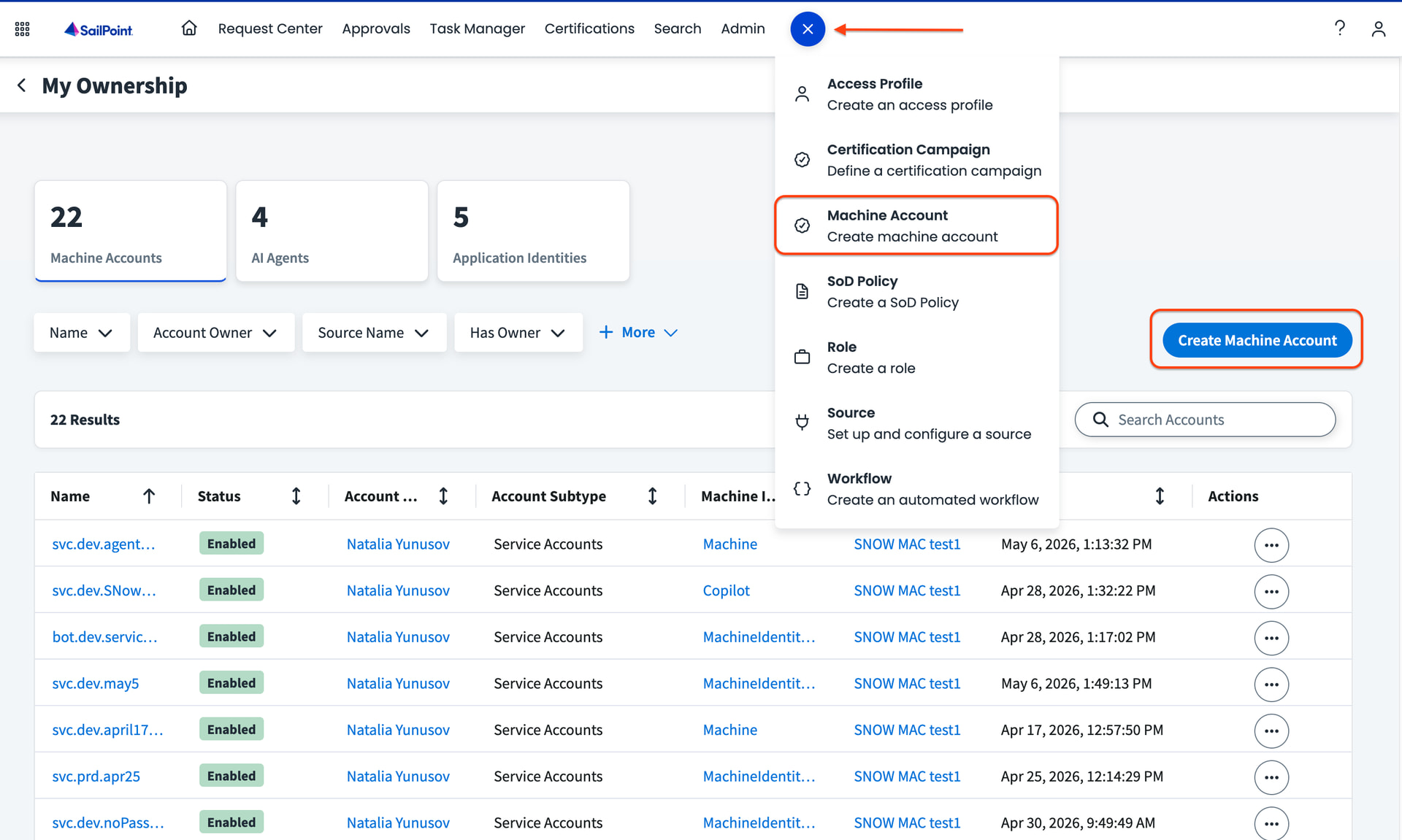
Step 3. In Details, choose the source and subtype, pick an account owner, optionally select if the account needs to correlate to an existing machine identity, add a description, then Continue.

Step 4. Fill out the custom form, then click the Continue button.
Step 5. (Optional) Open Entitlements, select Add Entitlements, search for and select one or more entitlements that you want this new machine account to have.

Step 6. Select Create Account.
- If no approval is required for creation, the account is created per your configuration.
- If approval is required, the request follows your administrators’ approval chain; you receive email updates as reviewers act. Entitlements you added go through their own approval flows after the machine account request is approved; if an entitlement is denied, the account can still be created without that entitlement.
Step 7. Track progress under Request Center → My Requests → Account Requests

For approvers: review machine account creation requests
Step 1. Open Approvals from the navigation menu, then Account Requests in the left panel.
Step 2. On the Requested tab, open a request card. Note whether the title indicates Create or Delete before you decide.

Step 3. Review details and comments, then Approve or Deny (a reason may be required when denying). Use Reassign if someone else should review.

Step 4. Use the Reviewed tab to see requests you have already completed.
For Account Owner: copy or reveal the generated password
If you configured the password to be generated as part of your policy, the final step is to securely retrieve it.
Step 1. Log in as the designated Account Owner and find the newly created machine account (e.g., via the My Ownership > Machine Accounts list).
Step 2. Click on the Actions menu (…) for that account and select Reveal Password.
Step 3. In the dialog box, you should be able to either reveal the password in the UI or copy it directly to your clipboard.

Additional Info about Access Requests
- Only entitlements that are marked as “Requestable” are displayed on the second step of creation flow.
- The second step, “Entitlements” can be disabled by Admins under Admin → Global → System Settings → Feature Settings → Access Requests. It’s enabled by default:

-
If “Manager” is selected as the approver for the entitlement and the access request is for a machine identity, by default, the request will go to the Requester’s Manager. In addition to the Requester’s Manager, the following options can be set as Manager replacement via API (machineIdentityManagerAssignment): machine identity primary owner, machine identity primary owner’s manager, machine account owner, machine account owner’s manager.
-
If the access request is for a machine identity, the Separation of Duties check won’t apply.
-
ETS Triggers: These fire regardless of identity type when enabled. While they do not currently include specific machine identity information, we are working on an enhancement to include this data as a fast follow-up.
-
Workflow Triggers: These fire regardless of identity type and include machine identity information. You may need to update your workflows or processes to account for machine identities.
-
Data Segmentation: When enabled globally, the “Selecting Entitlements” step of the Machine Account Creation flow is filtered to respect the data segments of the user making the request, as defined in Admin > Global > Data Segmentation.
Note: Data segmentation restrictions do not apply to administrators.* -
When an entitlement/access item has End Date required, the machine account creation flow currently does not include a UI field for entering an end date.
Because of that, behavior is as follows:
- If End Date is required and the access item has a Max Duration configured, we automatically set the request end date to the maximum allowed date.
- If End Date is required and no Max Duration is configured, admins should configure
fallbackAccessDurationInDaysinaccess-request-config.- This fallback duration is used to calculate the request end date.
- If no fallback is configured, the request fails because an end date is required but not provided.
We are planning a fast-follow enhancement post-GA to allow users to specify end date directly in the UI.
Who is affected?
MIS and AIS Customers.
Action Required
-
Administrators: For each source and machine account subtype where you want governed creation, complete form selection, attribute mappings, and approval settings; ensure the right users receive the Create Machine Account entitlement for each subtype you open for creation.
-
Review the Access Request settings for Machine Identities and disable them if access requests aren’t required during the account creation flow.
-
Review existing workflows and processes that utilize Access Requests related triggers. Because these triggers fire regardless of identity type, you may need to update your logic to properly handle machine identities.
Important Dates
Sandbox: available now.
Prod: the week of June 1st, 2026; postponed to June 16th.


