This solution was the result of a collaborative effort with @mostafa_helmy, whose valuable insights and contributions played a key role in shaping the solution.
What are Access Profiles?
Access Profiles are predefined sets of permissions or entitlements that can be assigned to users. These profiles streamline the assignment of access rights by grouping together the necessary permissions required for specific roles or functions within the organization.
Key Features
- Simplification: Instead of assigning individual permissions to users one by one, access profiles allow administrators to bundle these permissions. This makes it easier to manage and reduces the complexity of access control.
- Consistency: By using access profiles, organizations ensure that users with similar roles or job functions receive consistent access rights. This helps in maintaining uniformity and avoiding access discrepancies.
- Efficiency: Access profiles speed up the process of onboarding new employees or changing the roles of existing employees. By assigning a profile, all necessary permissions are granted in one step.
- Compliance and Auditing: Access profiles facilitate easier tracking and auditing of who has access to what resources. This is crucial for compliance with various regulations and standards.
- Role-Based Access Control (RBAC): Access profiles are often used in conjunction with RBAC policies, where profiles are linked to specific roles within the organization. This aligns access rights with organizational roles and responsibilities.
Usage Scenarios:
- Onboarding New Employees: When a new employee joins, assigning them an access profile based on their job role ensures they have all the necessary access rights from day one.
- Role Changes: If an employee changes roles within the organization, administrators can easily update their access by assigning a new access profile, removing old permissions and adding new ones in a single step.
- Compliance Management: Regular audits of access profiles help in ensuring that only authorized users have access to sensitive information, supporting compliance with regulations like GDPR, HIPAA, etc.
- Access Reviews: Periodic reviews of access profiles help in identifying and revoking unnecessary permissions, thereby reducing the risk of unauthorized access.
Customers Expectation
- Regular Audits: Access profile owners are expected to regularly review the permissions associated with their profiles to ensure they are still relevant and appropriate for the roles or functions they support.
- Updates and Changes: They are responsible for updating the access profiles as needed, adding new permissions for new functionalities, and removing permissions that are no longer necessary or that pose a security risk.
- Compliance and Security: Ensuring that the access profiles comply with organizational policies and regulatory requirements is a key responsibility. This involves making sure that the permissions granted are the minimum necessary for the users to perform their roles.
The following solution facilitates the Access Profile Owners certification to maintain:
- Automated Review Campaigns & Remediation: Regularly scheduled reviews where profile owners are prompted to review and certify the accuracy of access profiles, then automate the remediation of any changes made by the reviewers.
- Audit Logs: Detailed logs of changes made to access profiles, which help in tracking and accountability.
- Compliance Reports: Reports that show the status of access profiles and highlight any potential issues or areas that need attention.
Solution
Access Profiles Owner Certification
This solution is an example that combines the Webservice SaaS Connector with a Customizer using TypeScript SDK to model Access Profiles as Machine Identities Or Uncorrelated Accounts. This allows owners to certify the Access Profiles’ definitions (i.e. linked Entitlements) and automate the modifications tasks required to update Access Profiles.
High-Level
Utilizing the SaaS 2.0 WebService connector to loopback to the ISC tenant and aggregate the Access profiles as Machine Identities Or Uncorrelated Accounts. Then schedule an account owner Machine Identities certification campaign. Then all the account owner (Access Profile Owners) to certify the linked entitlement to their access profiles after activating the certification campaign.
| Pros | Cons |
|---|---|
| Leveraging the ISC OOTB capabilities: Workflows, SaaS 2.0 Connectors, Customizers and Certification campaigns wizard, Machine Identity Security | Increase the number of Machine Identities OR Increase the number of uncorrelated accounts |
| Enhanced Reporting capabilities | Requires Machine Identities Security License OR Requires a placeholder identity as source owner |
| OOTB Email notification | Search API latency |
Deployment Steps
- Create a new Webservice SaaS Connector:


- Configure a Webservice SaaS connector to loopback on your ISC tenant using a Oauth2.0 Authentication type and use Client Credentials client Id & client secret as the following:

- In the HTTP Operations, you will configure 6 operations:
- Test Connection:
- Configure the general information:
- Request Type: API
- Context URL: /v3/search?limit=1
- HTTP Method: POST

2. Headers
  1. Content-Type: application/json

2. In the Body section select **Raw** and add the below search query:
{
    "query": {
        "query": "*"
    },
    "indices": [
        "accessprofiles"
    ],
    "includeNested": true,
    "queryResultFilter": {
    "includes": [
      "name",
      "id",
      "description",
      "entitlements",
      "enabled",
      "owner",
      "requestable",
      "created",
      "apps"
    ]}
}
3. In the Response Information add the success code: 2**

4. Save the Test Connection Operation
- Account Aggregation Operation: Access_Profiles_Aggregations
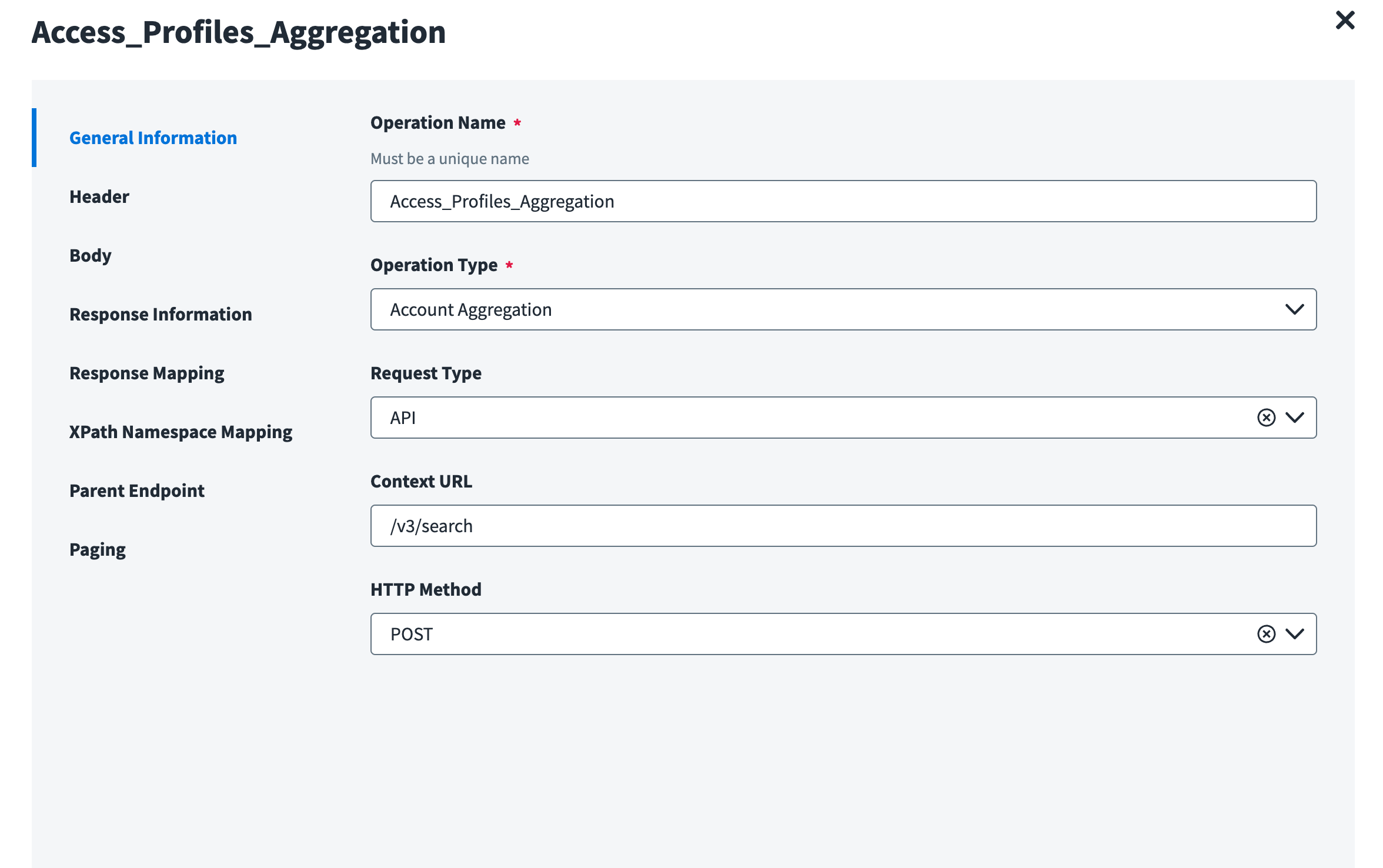
- Configure the general information:
- Operation Name: Access_Profiles_Aggregation
- Operation Type: Account Aggregation
- Request Type: API
- Context URL: /v3/search?limit=10000
- HTTP Method: POST
2. Headers
  1. Content-Type: application/json

3. In the Body section select **Raw** and add the below search query:
{
    "query": {
        "query": "*"
    },
    "indices": [
        "accessprofiles"
    ],
    "includeNested": true,
    "queryResultFilter": {
    "includes": [
      "name",
      "id",
      "description",
      "entitlements",
      "enabled",
      "owner",
      "requestable",
      "created",
      "apps"
    ]}
}
4. In the Response Information
  1. Root Path: $
  2. Success code: 2**

5. Response Mapping:

8. Save
- Get-Object:
- Configure the general information:
- Operation Name: Get Access Profile
- Operation Type: Get Object
- Request Type: API
- Context URL: /v3/access-profiles/$getObject.nativeIdentity$
- HTTP Method: GET

2. Headers
  1. Content-Type: application/json

3. In the Response Information
  1. Root Path: $
  2. Success code: 2**

4. Response Mapping:

5. Save
- Group Aggregation
- Operation Name: Entitlements Aggregations
- Operation Type: Group Aggregation
- Request Type: API
- Context URL: /v3/search?limit=10000
- HTTP Post: POST

2. Header:
  1. Content-Type: application/json

3. Body:
  1. Raw:
  {
    "query": {
        "query": "*"
    },
    "indices": [
        "accessprofiles"
    ],
    "includeNested": true,
    "queryResultFilter": {
    "includes": [
"entitlements"
    ]}
}
4. Response Information:
  1. Root Path: $..entitlements[?(@.id)]
  2. Success Code: 2**
5. Respond Mapping:

7. Save
-
- Update Account
- General Information:
- Operation Name: Update Access Profile
- Operation Type: Update Account
- Request Type: API
- Context URL: /v3/access-profiles/$plan.nativeIdentity$
- HTTP Post: PATCH

2. Header
  1. Content-Type: application/json-patch+json

3. Body
  1. Raw
$plan.entitlements$

4. Response Information
  1. Root Path: $
  2. Success Code: 2**
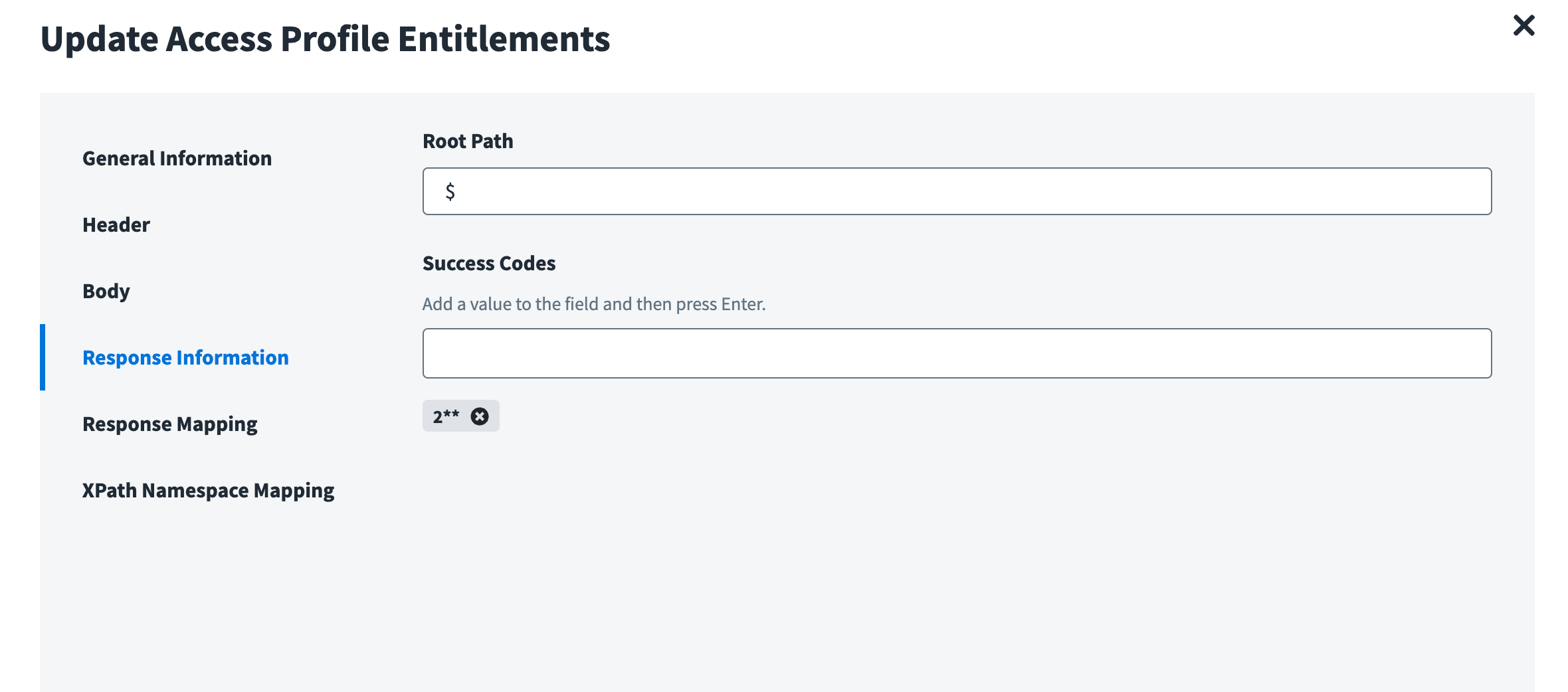
5. Response Mapping

6. Save
- Update Account
- General Information:
- Operation Name: Update Access Profile Entitlements
- Operation Type: Remove Entitlement
- Request Type: API
- Context URL: /v3/access-profiles/$plan.nativeIdentity$
- HTTP Post: PATCH

2. Header
  1. Content-Type: application/json-patch+json
3. Body
  1. Raw
$plan.entitlements$
4. Response Information
  1. Root Path: $
  2. Success Code: 2**
5. Response Mapping
6. Save
- Save the HTTP Operations

- Go to Additional Setting and check the boxes for :
- Add or Remove Entitlements in a Single Request
- Skip getObject Call during Create Provisioning

- Save and Review and test the connection.
- In the Connector, navigate to Account Schema
- Configure the Account schema to look like:

In the Connector, navigate to Entitlement Type
- Configure the Group schema to look like:

Then, deploy the Account Update customizer code from GitHub Repo, this code is used to prepare the account update request body. the code checks the revoked entitlements:
- If the reviewer has revoked all the access profile entitlements, it disables the access profile.
- Otherwise, it removes the revoked entitlements from the access profile.
Pre-reqs to deploy the Customizer code
- Install the SailPoint CLI tool
- Install Node / Node package manager (npm)
How to deploy the Customizer code
- Manually download & extract the code from GitHub, or use the git command line to clone the repo:
git clone https://github.com/mostafa-helmy-sp/isc-saas-customizer-access-profile-beforeupdate.git
- Building a connector customizer is similar to building a SaaS Connectorm, then package it using the following commands:
npm install npm run pack-zip
- Upload the created customizer zip file to the ISC tenant by ID:
sail conn customizers upload -c Customizer_ID -f .\dist\my-connector-customizer-0.1.0.zip
- Note the Customizer ID returned by this command for later use.
- List the current connector instatnce and save your Connector ID
sail conn instances list
- Link your customizer to your connector:
sail conn customizers link -i Connector_ID -c Customizer_ID
For more information about customizer: Connectivity Customizers | SailPoint Developer Community
Attached the Web Service SaaS Source where you can import it and change the configuration:
Access Profiles Aggregation Source-20250704-144515.json (14.4 KB)
Now choose which approach to follow:
1- Machine Identities Approach:
Note: Requires Extra license
In the connector configure the Machine Identity Security to Map the access profiles to their owners:
- Navigate to the Machine Account Classification:
- Enable Classification
- Choose Classify all accounts
- Click on Save & Process Classification

Then Navigate to Mappings
- Choose Machine account Owner → Account to Identity

- Then map the Account Attribute (“owner”) [Access Profile Owner] to the human Identity attribute (“name”)

- In the Connector, navigate to Account Aggregation → start aggregation and schedule it if necessary.
- In the Connector, navigate to Entitlement Aggregation → start aggregation and schedule it if necessary.
The Access Profile owner Identity page looks like:

Now, let’s generate the Access Profile Composition certification Campaign:
-
Navigate to Search → Certification Campaigns → New Campaign
-
Choose Machine Accounts
-
Search for the Access Profile Source that we already configured:
-
In the Campaign Details type the certification name and description and make sure that the reviewers are the accounts owners


Enjoy certifying the Access profiles entitlements now

2- Uncorrelated Accounts Approach:
Note: No Extra license is required
We must perform a certification reassignment logic to the Access Profile Owner
Certification Reassign Logic
Using PowerShell Script
The PowerShell script hosted on the GitHub Repo needs to be run manually by an admin with the SailPoint PowerShell SDK installed to reassign each uncorrelated account item (Access Profile) to its current owner instead of the Source Owner.
The Certification ID (or Name), and the Source Owner ID and Name must be supplied to the script to find the correct certification and reassign from the source owner to the rightful owner.
Then,
- Navigate to search → Certification Campaigns → New Campaign → Uncorrelated Accounts

- Select the Access Profile SaaS WebService source that we have created earlier:

- Then, Certify these account and Give the Campaign a unique name as this name should be the same name used in the script earlier filter, Enable Email Notifications and complete the other campaign options.
4- Run the PowerShell script to do the required reassignments.
5- Activate the Campaign so the access profile owners can certify their access profiles.