When a new user is provisioned by SailPoint and home folder created, permissions are not getting set on the folder for the user
Are you using an after create rule / script to accomplish this? You might need to do that and edit the PowerShell code to set the proper permissions.
We do have an after AD Account create rule that runs a powershell script. Below is a snippet of the powershell script that is suppose to be doing that
Set permissions on Home directories and Share
$FileSystemAccessRights =  [System.Security.AccessControl.FileSystemRights]::Modify;
$InheritanceFlags = [System.Security.AccessControl.InheritanceFlags]::"Containerinherit", "ObjectInherit";
$PropagationFlags = [System.Security.AccessControl.PropagationFlags]::none;
$AccessControlType = [System.Security.AccessControl.AccessControlType]::Allow;
$User = Get-ADUser -Identity $sAMAccountName;
Set-Aduser $User.Name -replace @{msnpallowdialin=$true};
$Accessrule = New-Object System.Security.AccessControl.FileSystemAccessRule ($User.SID, $FileSystemAccessRights, $InheritanceFlags, $PropagationFlags, $AccessControlType);
$ACL = Get-Acl $UserFolder;
$ACL.AddAccessRule($AccessRule);
Set-Acl -Path $UserFolder -AclObject $ACL -ea Stop | out-null;
e do have an after AD Account create rule that runs a powershell script. Below is a snippet of the powershell script that is suppose to be doing that
Set permissions on Home directories and Share
$FileSystemAccessRights =  [System.Security.AccessControl.FileSystemRights]::Modify;
$InheritanceFlags = [System.Security.AccessControl.InheritanceFlags]::"Containerinherit", "ObjectInherit";
$PropagationFlags = [System.Security.AccessControl.PropagationFlags]::none;
$AccessControlType = [System.Security.AccessControl.AccessControlType]::Allow;
$User = Get-ADUser -Identity $sAMAccountName;
Set-Aduser $User.Name -replace @{msnpallowdialin=$true};
$Accessrule = New-Object System.Security.AccessControl.FileSystemAccessRule ($User.SID, $FileSystemAccessRights, $InheritanceFlags, $PropagationFlags, $AccessControlType);
$ACL = Get-Acl $UserFolder;
$ACL.AddAccessRule($AccessRule);
Set-Acl -Path $UserFolder -AclObject $ACL -ea Stop | out-null;
Have you done any troubleshooting on the script? Maybe try creating a test account and step through these commands manually to make sure you have the proper permissions on the service account (or rule out any other errors).

Add pauses after some of the steps. In PowerShell, you can use:
Start-Sleep -Seconds 60
Or
Start-Sleep -Minutes 5
You can also use a Do-While function that loops until the previous step is complete, using a get-adaccount cmdlet to see if the attribute you are waiting to sync up is there or not.
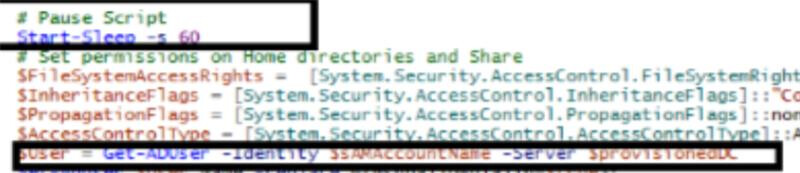
If it’s still a sync issue, then a Do-Until loop might help. Something like this:
do{
  $aduser = get-aduser samaccountname
}
until(
  $aduser
)
This will only allow the script to continue once the account is found
Avoid doing sleep in IQService PowerShell scripts (before / after rules)…that’s just holding up the thread queue.
If you must include a wait, wait in a separate process (without wait. i.e. async, decoupled):
# Start-Process
Look into this (InDisconnectedSession):
We put a Do-until in the script for our Sandbox environment and tested and the permissions got set on the folder.
Hope you’ve implemented a better loop. (CPU utilization, cap-less…yikes)

Because your do-while loop is getting the $user object from the perspective of the DC you’re connected to. Not from the perceptive of the file system that you’re trying to set the ACL on. The file system / server on the other end doesn’t know about the $user yet…that file server likely is connected with a different DC.
It’s like:
I can see it, do you see it?
I don’t see it yet.
Hi David,
We faced a similar issue.
Workaround was to set a extensionAttribute to “Create Home Drive” during account creation.
The script runs as a scheduler and searches all users who are having this extension attribute set and created more than 30 mins before. This gave enough time for DCs to sync. Hope this helps
Regards
Arjun