Track 03 · UI Plugins
Start with this track. It teaches you how UI plugins work, and it takes about one hour. When you finish, go to Take it to the main hack and use what you learned to build your own plugin.
A UI plugin is a page that SailPoint Identity Security loads inside the product. It uses the signed-in user's session, so every API call you make is already authenticated.
You will build a manager lookup: pick a manager from a searchable dropdown and get a table of everyone who reports to them. While you write the code, your tenant renders it live. You do not need to host anything.
The finished page will look similar to this:
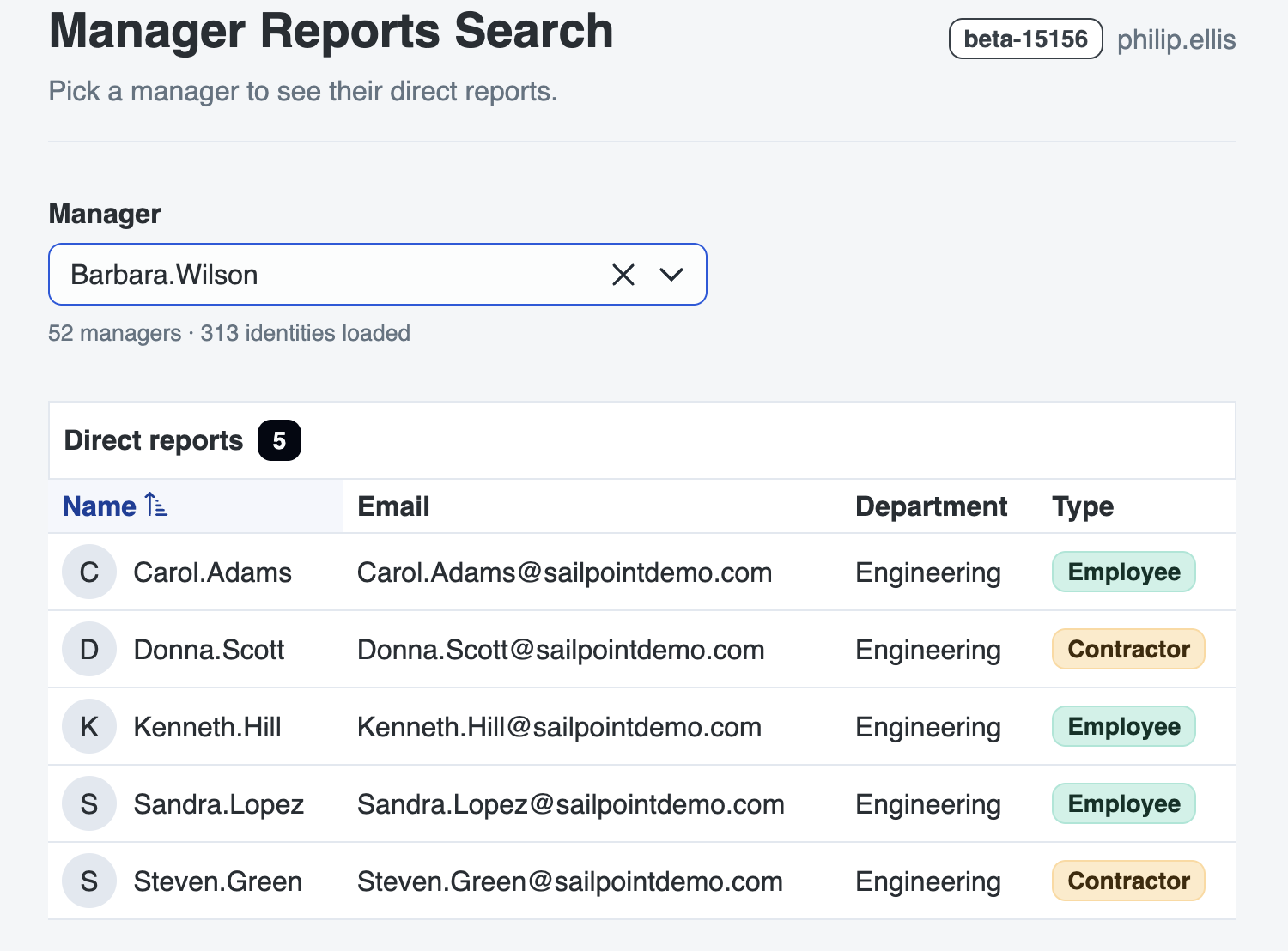
The data to create the page comes from one API call. The page loads every identity once, and both the dropdown and the table are built from that data.
How to get started
Work through the steps in order:
- Steps 1 to 4 get your local code rendering inside the tenant.
- Steps 5 to 7 build the page, one piece at a time. Each one ends with a Checkpoint so you can confirm it works before you move on.
- Step 8 deploys the page, and step 9 adds it to the SailPoint Identity Security nav bar. Both are optional.
Each step has collapsed sections. Why it works explains the code, and The code so far shows the full files, so you can catch up in case you get stuck.
1. Install the prerequisites
Use Google Chrome, Microsoft Edge, or Mozilla Firefox for this track. Other browsers are not fully tested and might not work properly.
You have Node, the CLI, a PAT, and a hackday environment already. Skip to
Checking that UI Plugins are enabled.
If you think you are already set up, run these first. If all four pass, skip to step 2.
Your terminal
node --version                      # 24+
sail --version                      # 2.7.0 or newer
sail env show                       # your tenant, active
sail ui-plugins list                # returns without an error
Node
The starter template is an Angular application. Angular works best with 24 and above.
Your terminal
node --version
If your version is not in that set, install a current LTS release from nodejs.org. The Angular CLI does not start on an unsupported version.
SailPoint CLI
- macOS
- Windows
- Linux
Your terminal
brew tap sailpoint-oss/tap
brew trust --formula sailpoint-oss/tap/sailpoint-cli
brew install sailpoint-cli
Download sail_2.7.0_windows_amd64.msi from the
releases page, double click it, and follow
the installer. 64-bit Windows only.
Download the .deb or .rpm from the
releases page, then install it:
Your terminal — Debian or Ubuntu
sudo apt install ./sail_2.7.0_linux_amd64.deb
Your terminal — Red Hat or Fedora
sudo yum localinstall ./sail_2.7.0_linux_amd64.rpm
Confirm that the version is 2.7.0 or newer:
Your terminal
sail --version
The ui-plugins command group is new, so install the latest release instead of using a version
you already have. If sail ui-plugins reports an unknown command, your binary is likely too old.
Personal access token
The CLI needs credentials to call your tenant's APIs. A personal access token (PAT) is the simplest option.
- In your tenant, open Preferences → Personal Access Tokens, or go to
https://[tenant].identitynow.com/ui/d/user-preferences/personal-access-tokens. - Click New Token and enter a description, such as
hack-day-cli. - For the vendor integration, choose Other / No associated vendor integration.
- Leave the scopes list empty. The token then defaults to
sp:scopes:alland has the same access as you, which is what the plugin commands need. - Click Create Token, then copy the Client ID and Client Secret. You cannot see the secret again.
More detail: personal access tokens.
Point the CLI at your tenant
Run this command to connect to your tenant:
sail env create hackdaycreates an environment for your tenant. It asks for your tenant URL (https://[tenant].identitynow.com) and API URL (https://[tenant].api.identitynow.com).
Your terminal
sail env create hackday
More detail: CLI install and configuration.
Checking that UI Plugins are enabled
This is the first command that reaches the backend, so it tests your credentials and the feature flag together:
Your terminal
sail ui-plugins list
| Result | What it means |
|---|---|
| An empty list | Everything works. The list is empty because you have not created a plugin yet. |
| A rights error | Your identity is missing the idn:plugins-ui:* right that the error names. |
| "Not enabled for this tenant" | The feature flag is off. Ask a developer advocate. You cannot fix this yourself. |
See details: the rights each operation needs
| Operation | Required right |
|---|---|
| Create a plugin instance | idn:plugins-ui:create |
| Read or list plugin instances | idn:plugins-ui:read |
| Link, unlink, or upload assets | idn:plugins-ui:update |
| Delete a plugin instance | idn:plugins-ui:delete |
2. Scaffold the plugin workspace
Run these commands one at a time. Replace the [name] with your name to make sure the plugin instance is unique as someone else might be sharing the instance with you.
sail ui-plugins init downloads the SailPoint starter template into
a new folder, cd moves you into it, and npm install downloads its dependencies.
Your terminal
sail ui-plugins init manager-lookup-[name]
cd manager-lookup-[name]
npm install
You now have a normal Angular application with a few files that are specific to UI plugins. Below are some important files to take note of:
| File | What it does |
|---|---|
sp-ui-plugin.json | Describes the plugin to SailPoint Identity Security: its alias, its API scopes, and the slots it fills |
src/app/app.config.ts | Sets up the SDK and the themed component library |
src/app/core/spds-prime-theme.ts | The SailPoint design system as a PrimeNG theme. Generated, so do not edit it |
src/app/app.ts | Your component. It contains some default examples |
src/app/app.html | Your template |
src/app/app.scss | Your styles. Empty in the scaffold |
Add the stylesheet now. It covers the whole finished page, so you only need to modify it once.
Replace the contents of src/app/app.scss with the code below.
Copy this: src/app/app.scss
src/app/app.scss
:host {
  display: block;
  box-sizing: border-box;
  max-width: 64rem;
  margin: 0 auto;
  padding: 2rem 1.5rem 4rem;
  color: var(--spds-text-color);
}

/* One rhythm for every top-level block, so nothing needs its own margin. */
.page {
  display: flex;
  flex-direction: column;
  gap: 2rem;
}

.page__header {
  display: flex;
  flex-wrap: wrap;
  align-items: baseline;
  justify-content: space-between;
  gap: 0.75rem 1.5rem;
  padding-bottom: 1.25rem;
  border-bottom: 1px solid var(--spds-content-border-color);
}

.page__title {
  margin: 0;
}

.page__subtitle {
  margin: 0.35rem 0 0;
  color: var(--spds-text-muted-color);
}

/* Keeps the tenant tag and the user name together when the header wraps. */
.page__meta {
  display: flex;
  align-items: center;
  gap: 0.5rem;
  white-space: nowrap;
}

.page__user {
  color: var(--spds-text-muted-color);
}

/* Label, control, and hint stack, each on its own line. */
.picker {
  display: flex;
  flex-direction: column;
  align-items: flex-start;
  gap: 0.5rem;
}

.picker__label {
  display: block;
  font-weight: 600;
}

.picker__select {
  width: 24rem;
  max-width: 100%;
}

.picker__hint {
  display: block;
  color: var(--spds-text-muted-color);
}

/* Table bits */
.table-caption {
  display: flex;
  align-items: center;
  gap: 0.5rem;
  padding: 0.25rem 0;
}

.cell-person {
  display: flex;
  align-items: center;
  gap: 0.6rem;
}

.cell-empty {
  padding: 1.5rem;
  text-align: center;
  color: var(--spds-text-muted-color);
}
The stylesheet is short because the theme does most of the work. It uses the theme's
--spds-* CSS variables for its colours, so the page matches SailPoint Identity Security. See
UI Plugins: an in-depth look for more about the theme.
Why it works: what is in sp-ui-plugin.json
This is the only file that is not an ordinary Angular file:
sp-ui-plugin.json
{
    "version": 1,
    "manifest": {
        "alias": "manager-lookup-[name]",
        "name": { "en": "manager-lookup-[name]" },
        "description": { "en": "manager-lookup-[name]" },
        "apiScopes": ["sp:scopes:all"],
        "contentSecurityPolicies": {},
        "permissionPolicy": {},
        "iframeAllow": {},
        "state": "ENABLED",
        "slots": [{ "slotId": "full-page" }]
    },
    "build": {
        "outDir": "./dist/manager-lookup-[name]/browser",
        "port": 4200
    }
}
The file has two parts:
manifestis sent to SailPoint Identity Security. It declares the alias, the display name, the API scopes your page can use, and the slots the plugin fills.full-pagegives your plugin a whole page of its own, not a panel inside an existing screen.buildstays on your laptop.outDirtellsuploadwhere your compiled files are, andporttellslinkwhere your dev server listens.
To check the manifest's structure without calling the backend, run this in the manager-lookup-[name]
folder:
sail ui-plugins validate-manifest
3. Register the plugin instance
create reads sp-ui-plugin.json, validates it, and sends the manifest section to your tenant to
register a plugin instance. It does not deploy or upload any code.
Your terminal
sail ui-plugins create
Terminal output
Created plugin instance 033b32b5-280f-4d78-a856-05c2a34d15d1 (alias: manager-lookup-[name])
4. Load your local code in the tenant
link tells your tenant to load the plugin from your dev server instead of from deployed files. This
change applies only to you, so nobody else in the tenant is affected.
-
In a second terminal, start the dev server and leave it running:
Your second terminal
npm run start -
Back in the first terminal, link it:
Your first terminal
sail ui-plugins linkTerminal output
Plugin manager-lookup-[name] linked to port 4200To load your local plugin in SailPoint Identity Security navigate to:https://<tenant>/ui/plugin/033b32b5-280f-4d78-a856-05c2a34d15d1?spPluginDev=manager-lookup-[name] -
Open the printed URL.
You see the starter page inside your tenant, with a Local Dev badge. From now on, when you save a file and refresh the browser, you see your changes.
The dev server uses HTTPS with a self-signed certificate, and your browser blocks it until you accept it. This error almost always has one of two causes:
npm run startis not running.- You have not accepted the certificate yet. Open
https://localhost:4200in a new tab, accept the warning, then return to the SailPoint Identity Security tab and click Retry. The browser shows the dev server as Not Secure, which is expected for local development.
See details: why not localhost, other ports, and how to unlink
When your plugin starts, it performs a handshake with the SailPoint Identity Security App Shell. The App Shell gives it
the tenant, the signed-in user, and the token for API calls. If you open https://localhost:4200
directly, there is no App Shell. The page renders, but every API call fails.
That is why you develop against your tenant, not against localhost.
Your two terminals
# Terminal 1
sail ui-plugins link          # or: sail ui-plugins link --port 4300

# Terminal 2
npm run start
The CLI takes the port from --port first, then from build.port in the manifest, and then uses the
default 4200.
When you are done, remove the link so the tenant serves the deployed files again:
Your terminal
sail ui-plugins unlink
You can run unlink safely whether or not a link exists.
5. List the identities
Load every identity in the tenant, and show how many there are. The dropdown and the table in the next two steps both use this data.
- Replace the entire contents of
src/app/app.tswith this code:
import { Component, computed, effect, inject, signal } from '@angular/core';
import { SailpointPluginService } from '@core';
import { Paginator } from '@sailpoint/angular-sdk';
import { IdentitiesService, type Identity } from '@sailpoint/angular-sdk/identities';
import { MessageModule } from 'primeng/message';
import { TagModule } from 'primeng/tag';
import { firstValueFrom } from 'rxjs';
import { FormsModule } from '@angular/forms';
import { SelectModule } from 'primeng/select';
import { SkeletonModule } from 'primeng/skeleton';
import { AvatarModule } from 'primeng/avatar';
import { TableModule } from 'primeng/table';

/** One entry in the manager dropdown. */
interface ManagerOption {
  id: string;
  name: string;
}

@Component({
  selector: 'app-root',
  imports: [AvatarModule, FormsModule, MessageModule, SelectModule, SkeletonModule, TableModule, TagModule],
  providers: [IdentitiesService],
  templateUrl: './app.html',
  styleUrl: './app.scss',
})
export class App {
  protected readonly plugin = inject(SailpointPluginService);
  private readonly identitiesSvc = inject(IdentitiesService);

  /** Every identity the page has loaded. Everything else is derived from this. */
  protected readonly identities = signal<Identity[]>([]);
  protected readonly loading = signal(false);
  protected readonly error = signal('');

  private requested = false;

  constructor() {
    // Wait for the App Shell handshake, then load once.
    effect(() => {
      if (this.plugin.apiReady() && !this.requested) {
        this.requested = true;
        void this.loadIdentities();
      }
    });
  }

  protected async loadIdentities(): Promise<void> {
    this.loading.set(true);
    this.error.set('');

    try {
      // Paginator.paginate() walks the endpoint 250 records at a time and emits once
      // with every identity in the tenant. Uncomment it:
      // const identities = await firstValueFrom(
      //   Paginator.paginate(
      //     (params) => this.identitiesSvc.listIdentitiesV1(params),
      //     { sorters: 'name' },
      //   ),
      // );
      // this.identities.set(identities);
    } catch (err) {
      this.error.set(this.formatApiError(err));
    } finally {
      this.loading.set(false);
    }
  }

  private formatApiError(err: unknown): string {
    return err instanceof Error ? `${err.name}: ${err.message}` : String(err);
  }
}
-
In
loadIdentities(), uncomment the six lines inside thetryblock. This is the one change you make yourself in this step. The code is commented out, not missing, so you can see exactly where the API call goes. -
Replace the entire contents of
src/app/app.htmlwith this template. It has a header that shows the handshake worked, an error message for each failure, and the identity count:
<main class="page">
  <header class="page__header">
    <div>
      <h1 class="page__title">Manager Reports Search</h1>
      <p class="page__subtitle">Pick a manager to see their direct reports.</p>
    </div>
    @if (plugin.context(); as ctx) {
      <div class="page__meta">
        <p-tag severity="secondary" [value]="ctx.tenant.org" />
        <span class="page__user">{{ ctx.user.displayName }}</span>
      </div>
    }
  </header>

  @if (plugin.status() === 'failed') {
    <p-message severity="error">
      The App Shell handshake did not complete, so this plugin has no API token. Open the
      <code>?spPluginDev=</code> URL that <code>sail ui-plugins link</code> printed.
    </p-message>
  }
  @if (error()) {
    <p-message severity="error" [text]="error()" />
  }

  <section class="picker">
    <p>Loaded {{ identities().length }} identities.</p>
  </section>
</main>
- Save both files and refresh the
?spPluginDev=tab. The dev server rebuilds automatically.
The header shows your tenant and your name, and the page looks like this:
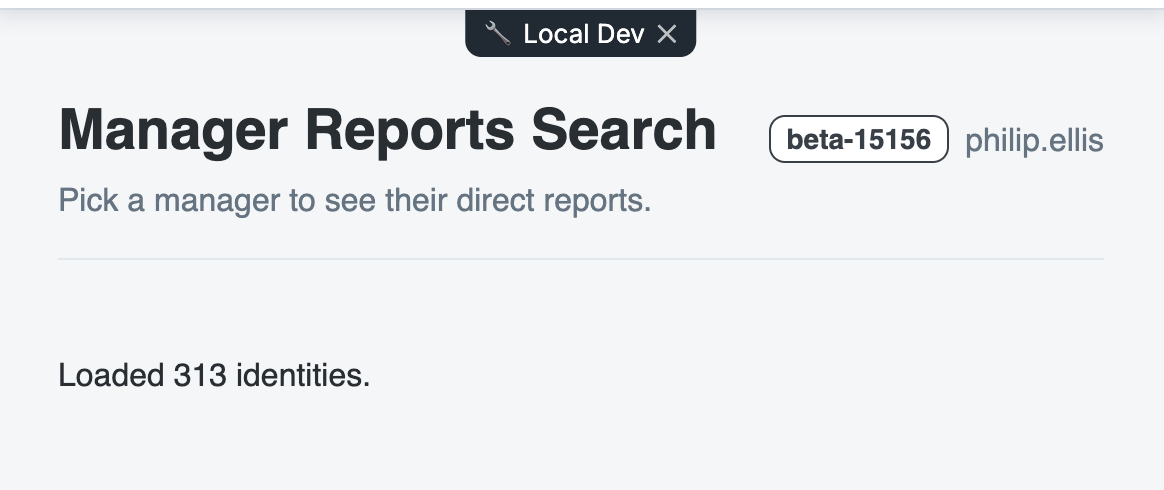
That number is every identity in the tenant. In your browser's network tab, you see one request per
250 records, and each request has a higher offset than the one before it.
If it says Loaded 0 identities., the call worked but the result was not stored. Make sure you
uncommented this.identities.set(identities);.
Why it works: the paginator, the effect, and the imports
listIdentitiesV1() and Paginator. A list endpoint returns at most 250 records per request.
One call would silently miss everyone after the first 250, and a manager whose reports are not on that
first page would show no reports. Paginator.paginate() runs the paging loop for you and emits once
with every record. It takes three arguments:
- A function that calls the list method.
- The base parameters. Anything the endpoint accepts can go here.
sorters: 'name'returns the identities in alphabetical order, so you do not have to sort the dropdown. - The page size. The default is 250.
firstValueFrom(). Every SDK method returns an Observable. firstValueFrom() turns it into a
promise, which is easier to read in a method that loads once and stores the result.
The SDK entry point. The Angular SDK is split by API area, so IdentitiesService comes from
@sailpoint/angular-sdk/identities.
The effect(). An effect runs again each time a signal it reads changes. This one reads
apiReady(), so the load starts as soon as the App Shell handshake finishes. The requested flag
makes sure it loads only once.
The imports array. A standalone Angular component must declare every component its template
uses. MessageModule and TagModule are here for p-message and p-tag. You add to this array in
the next two steps.
p-tag and p-message. These do real work. A p-message has a severity, so an error looks like
an error and has an icon, without you choosing a colour.
SailpointPluginService. This comes from the scaffold, and it gives you plugin.context(),
plugin.status(), and plugin.apiReady(). See UI Plugins: an in-depth look.
6. Build the manager dropdown
Turn the identities you retrieved into a searchable list of managers by using a dropdown component.
-
Inside the class, next to the other signals, add a signal for the selected manager:
/** The manager the user picked in the dropdown. */protected readonly selectedManagerId = signal(''); -
Above
private requested = false, add the list of managers. Then uncomment thebyId.set(...)line in the loop:/*** The dropdown options. Every identity carries a managerRef, so the set of* managers is the set of distinct managerRef values in the loaded list.*/protected readonly managers = computed<ManagerOption[]>(() => {const byId = new Map<string, ManagerOption>();for (const identity of this.identities()) {const ref = identity.managerRef;if (ref?.id && ref.name) {// A Map keyed by the manager's id de-duplicates them, because the same// manager appears on every one of their reports. Uncomment it:// byId.set(ref.id, { id: ref.id, name: ref.name });}}return [...byId.values()].sort((a, b) => a.name.localeCompare(b.name));}); -
Below the
loadIdentities()method, add the handler that runs when the user picks a manager:/** Runs when the user picks a manager. p-select hands us the option's value. */protected onManagerChange(managerId: string | null): void {this.selectedManagerId.set(managerId ?? '');} -
In
src/app/app.html, replace thepickersection with the dropdown:
<section class="picker">
<label class="picker__label" for="manager">Manager</label>
@if (loading()) {
<p-skeleton height="2.6rem" width="22rem" />
} @else {
<p-select
inputId="manager"
[options]="managers()"
optionLabel="name"
optionValue="id"
[ngModel]="selectedManagerId()"
(onChange)="onManagerChange($event.value)"
[filter]="true"
filterBy="name"
[showClear]="true"
placeholder="Select a manager"
emptyMessage="No identities in this tenant have a manager set"
styleClass="picker__select"
/>
<small class="picker__hint">{{ managers().length }} managers · {{ identities().length }} identities loaded</small>
}
</section>
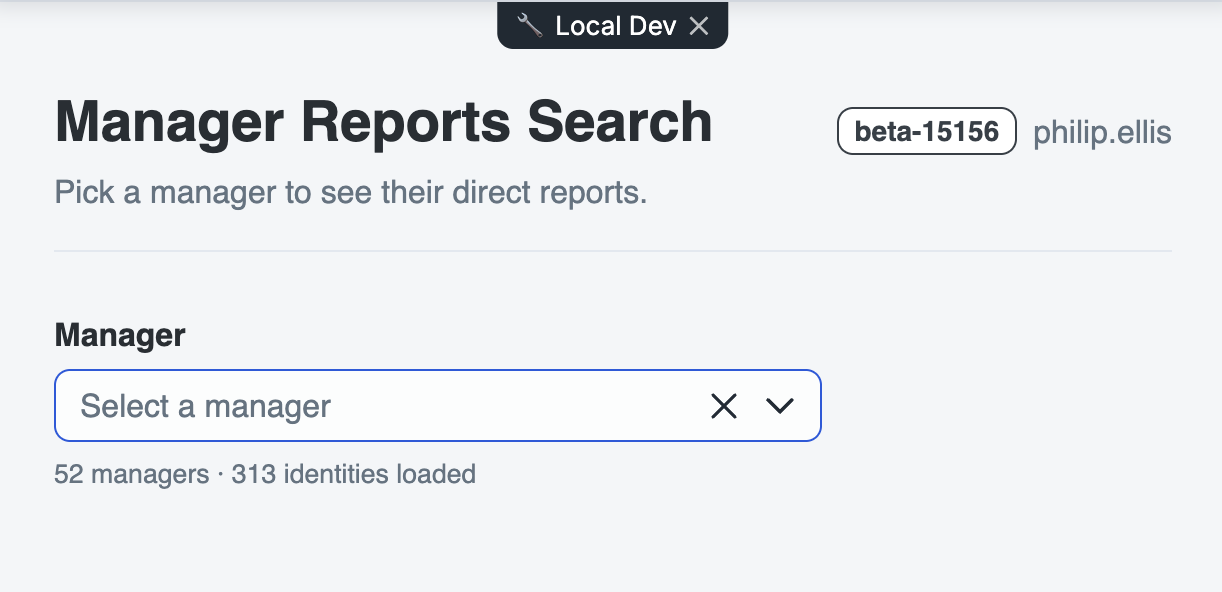
- Save and refresh.
You see a dropdown with every manager in the tenant, in alphabetical order, and each name appears only once. When you type in it, the list gets shorter.
If a name appears more than once, the Map is not likely not keyed by the manager's id.
Why it works: managerRef, the select attributes, and one-way binding
Where the managers come from: listIdentitiesV1 cannot filter by manager, so you do not ask the
API for managers. Instead, you read them from the identities you already have. Every identity has a
managerRef, which is a reference to its manager, like a foreign key in a database row. The
distinct set of those references is the list of managers in your tenant. In step 7 you read the same
references the other way to find each manager's reports.
The p-select attributes:
| Attribute | What it does |
|---|---|
[filter]="true" | Adds a search box inside the dropdown, for tenants with many managers |
[showClear]="true" | Adds an × that clears the selection |
emptyMessage | The text to show when managers() is empty, instead of a blank panel |
optionLabel / optionValue | Which field to display, and which field to emit |
One-way binding. The template uses [ngModel], not the usual [(ngModel)]. The signal is the only
place that holds the selection. The value goes from the signal into the control, and the control
reports changes back through (onChange). Two-way binding would put the same state in two places.
- PrimeNG Select
- Standard collection parameters — the
filterssyntax, and what each endpoint accepts
See details: the code so far, in full
src/app/app.ts
import { Component, computed, effect, inject, signal } from '@angular/core';
import { SailpointPluginService } from '@core';
import { Paginator } from '@sailpoint/angular-sdk';
import { IdentitiesService, type Identity } from '@sailpoint/angular-sdk/identities';
import { MessageModule } from 'primeng/message';
import { TagModule } from 'primeng/tag';
import { firstValueFrom } from 'rxjs';
import { FormsModule } from '@angular/forms';
import { SelectModule } from 'primeng/select';
import { SkeletonModule } from 'primeng/skeleton';
import { AvatarModule } from 'primeng/avatar';
import { TableModule } from 'primeng/table';
/** One entry in the manager dropdown. */
interface ManagerOption {
id: string;
name: string;
}
@Component({
selector: 'app-root',
imports: [AvatarModule, FormsModule, MessageModule, SelectModule, SkeletonModule, TableModule, TagModule],
providers: [IdentitiesService],
templateUrl: './app.html',
styleUrl: './app.scss',
})
export class App {
protected readonly plugin = inject(SailpointPluginService);
private readonly identitiesSvc = inject(IdentitiesService);
/** Every identity the page has loaded. Everything else is derived from this. */
protected readonly identities = signal<Identity[]>([]);
protected readonly loading = signal(false);
protected readonly error = signal('');
  /** The manager the user picked in the dropdown. */
  protected readonly selectedManagerId = signal('');
/**
* The dropdown options. Every identity carries a managerRef, so the set of
* managers is the set of distinct managerRef values in the loaded list.
*/
protected readonly managers = computed<ManagerOption[]>(() => {
const byId = new Map<string, ManagerOption>();
for (const identity of this.identities()) {
const ref = identity.managerRef;
if (ref?.id && ref.name) {
byId.set(ref.id, { id: ref.id, name: ref.name });
}
}
return [...byId.values()].sort((a, b) => a.name.localeCompare(b.name));
});
private requested = false;
constructor() {
// Wait for the App Shell handshake, then load once.
effect(() => {
if (this.plugin.apiReady() && !this.requested) {
this.requested = true;
void this.loadIdentities();
}
});
}
protected async loadIdentities(): Promise<void> {
this.loading.set(true);
this.error.set('');
try {
const identities = await firstValueFrom(
Paginator.paginate(
(params) => this.identitiesSvc.listIdentitiesV1(params),
{ sorters: 'name' },
),
);
this.identities.set(identities);
} catch (err) {
this.error.set(this.formatApiError(err));
} finally {
this.loading.set(false);
}
}
  /** Runs when the user picks a manager. p-select hands us the option's value. */
  protected onManagerChange(managerId: string | null): void {
    this.selectedManagerId.set(managerId ?? '');
  }
private formatApiError(err: unknown): string {
return err instanceof Error ? `${err.name}: ${err.message}` : String(err);
}
}
src/app/app.html
<main class="page">
<header class="page__header">
<div>
<h1 class="page__title">Manager Reports Search</h1>
<p class="page__subtitle">Pick a manager to see their direct reports.</p>
</div>
@if (plugin.context(); as ctx) {
<div class="page__meta">
<p-tag severity="secondary" [value]="ctx.tenant.org" />
<span class="page__user">{{ ctx.user.displayName }}</span>
</div>
}
</header>
@if (plugin.status() === 'failed') {
<p-message severity="error">
The App Shell handshake did not complete, so this plugin has no API token. Open the
<code>?spPluginDev=</code> URL that <code>sail ui-plugins link</code> printed.
</p-message>
}
@if (error()) {
<p-message severity="error" [text]="error()" />
}
  <section class="picker">
    <label class="picker__label" for="manager">Manager</label>
    @if (loading()) {
      <p-skeleton height="2.6rem" width="22rem" />
    } @else {
      <p-select
        inputId="manager"
        [options]="managers()"
        optionLabel="name"
        optionValue="id"
        [ngModel]="selectedManagerId()"
        (onChange)="onManagerChange($event.value)"
        [filter]="true"
        filterBy="name"
        [showClear]="true"
        placeholder="Select a manager"
        emptyMessage="No identities in this tenant have a manager set"
        styleClass="picker__select"
      />
      <small class="picker__hint">{{ managers().length }} managers · {{ identities().length }} identities loaded</small>
    }
  </section>
</main>
7. Show the direct reports
When the user selects a manager, show a table of that manager's reports. You already have the data, so this step does not make an API call either.
-
Below the
managersmethod, add the list of reports. Then uncomment thereturnline and delete thereturn [];under it. The empty array is there only so the file compiles while the real line is commented out./** The direct reports of the selected manager. */protected readonly reports = computed<Identity[]>(() => {const managerId = this.selectedManagerId();if (!managerId) {return [];}// The reports are the identities whose managerRef points at this manager.// Uncomment this line and delete the empty array below it:// return this.identities().filter((identity) => identity.managerRef?.id === managerId);return [];}); -
Below the
onManagerChange()method, add three helpers for the table. They read the department, make initials for the avatar, and choose a colour for the status tag:
  /** Reads one identity attribute out of the untyped attributes map. */
  protected attr(identity: Identity, key: string): string {
    const attributes = identity.attributes as Record<string, unknown> | undefined;
    const value = attributes?.[key];
    return typeof value === 'string' && value ? value : '-';
  }

  /** Initials for the avatar, so "Jean Bartik" becomes "JB". */
  protected initials(name: string): string {
    return name
      .split(' ')
      .filter(Boolean)
      .slice(0, 2)
      .map((part) => part[0].toUpperCase())
      .join('');
  }

  /** Maps an identity type onto a p-tag severity: employees are green, contractors are yellow. */
  protected typeSeverity(type: string): 'success' | 'warn' | 'secondary' {
    switch (type.toUpperCase()) {
      case 'EMPLOYEE':
        return 'success';
      case 'CONTRACTOR':
        return 'warn';
      default:
        return 'secondary';
    }
  }
- In
src/app/app.html, add the table after thepickersection, inside<main>:
  @if (selectedManagerId()) {
    <p-table
      [value]="reports()"
      [paginator]="reports().length > 10"
      [rows]="10"
      sortField="name"
      [sortOrder]="1"
      styleClass="p-datatable-sm"
      [tableStyle]="{ 'min-width': '40rem' }"
    >
      <ng-template #caption>
        <div class="table-caption">
          <span class="spds-h5--semibold">Direct reports</span>
          <p-tag severity="contrast" [value]="reports().length + ''" />
        </div>
      </ng-template>

      <ng-template #header>
        <tr>
          <th pSortableColumn="name">Name <p-sortIcon field="name" /></th>
          <th>Email</th>
          <th>Department</th>
          <th>Type</th>
        </tr>
      </ng-template>

      <ng-template #body let-person>
        <tr>
          <td>
            <div class="cell-person">
              <p-avatar [label]="initials(person.name)" shape="circle" />
              <span>{{ person.name }}</span>
            </div>
          </td>
          <td>{{ person.emailAddress || '-' }}</td>
          <td>{{ attr(person, 'department') }}</td>
          <td>
            <p-tag
              [severity]="typeSeverity(attr(person, 'types'))"
              [value]="attr(person, 'types')"
            />
          </td>
        </tr>
      </ng-template>

      <ng-template #emptymessage>
        <tr>
          <td colspan="4" class="cell-empty">This manager has no direct reports in the loaded identities.</td>
        </tr>
      </ng-template>
    </p-table>
  }
- Save, refresh, and pick a manager.
You should see a table with a caption and a count, a Name column you can sort, and one row per report with a coloured status tag.
Open your browser's network tab and pick a different manager. You see no new request, because
both computed() values use identities that are already in memory.
Why it works: the reverse lookup, the helpers, and the table templates
The reverse lookup. The managerRef that built the dropdown also works the other way: a manager's
reports are the identities whose managerRef points at that manager. The ?. in
identity.managerRef?.id matters. People at the top of the organization have no manager, so
managerRef can be null. Without ?., the first of those identities throws an error.
The helpers.
attr()reads a value fromattributes. Department and type are not top-level fields — they live inattributes, which the SDK types as a plainobjectbecause its contents differ in each tenant.initials()turns a name into initials for the avatar.typeSeverity()maps an identity type to a PrimeNG severity:EMPLOYEEis green (success) andCONTRACTORis yellow (warn), so the colour of the type tag carries meaning at a glance.
The table templates. p-table is built from named ng-template blocks, not plain markup. You
almost always want these four:
| Template | What it is |
|---|---|
#caption | The strip above the table |
#header | The column headings |
#body | One row. It receives one item at a time through let-person |
#emptymessage | What to show when there are no rows |
The table attributes. pSortableColumn and p-sortIcon let the user click the Name column to
sort it. [paginator] appears only when there are more than ten reports. sortField sets the
initial order. The caption uses .spds-h5--semibold, a design system heading class, so you do not
have to choose a font size.
See details: the code so far, in full
src/app/app.ts
import { Component, computed, effect, inject, signal } from '@angular/core';
import { SailpointPluginService } from '@core';
import { Paginator } from '@sailpoint/angular-sdk';
import { IdentitiesService, type Identity } from '@sailpoint/angular-sdk/identities';
import { MessageModule } from 'primeng/message';
import { TagModule } from 'primeng/tag';
import { firstValueFrom } from 'rxjs';
import { FormsModule } from '@angular/forms';
import { SelectModule } from 'primeng/select';
import { SkeletonModule } from 'primeng/skeleton';
import { AvatarModule } from 'primeng/avatar';
import { TableModule } from 'primeng/table';

/** One entry in the manager dropdown. */
interface ManagerOption {
  id: string;
  name: string;
}

@Component({
  selector: 'app-root',
  imports: [AvatarModule, FormsModule, MessageModule, SelectModule, SkeletonModule, TableModule, TagModule],
  providers: [IdentitiesService],
  templateUrl: './app.html',
  styleUrl: './app.scss',
})

export class App {
  protected readonly plugin = inject(SailpointPluginService);
  private readonly identitiesSvc = inject(IdentitiesService);

  /** Every identity the page has loaded. Everything else is derived from this. */
  protected readonly identities = signal<Identity[]>([]);
  protected readonly loading = signal(false);
  protected readonly error = signal('');

  /** The manager the user picked in the dropdown. */
  protected readonly selectedManagerId = signal('');

  /**
   * The dropdown options. Every identity carries a managerRef, so the set of
   * managers is the set of distinct managerRef values in the loaded list.
   */
  protected readonly managers = computed<ManagerOption[]>(() => {
    const byId = new Map<string, ManagerOption>();

    for (const identity of this.identities()) {
      const ref = identity.managerRef;
      if (ref?.id && ref.name) {
        byId.set(ref.id, { id: ref.id, name: ref.name });
      }
    }

    return [...byId.values()].sort((a, b) => a.name.localeCompare(b.name));
  });

  /** The direct reports of the selected manager. */
  protected readonly reports = computed<Identity[]>(() => {
    const managerId = this.selectedManagerId();
    if (!managerId) {
      return [];
    }
    return this.identities().filter((identity) => identity.managerRef?.id === managerId);
  });

  private requested = false;

  constructor() {
    // Wait for the App Shell handshake, then load once.
    effect(() => {
      if (this.plugin.apiReady() && !this.requested) {
        this.requested = true;
        void this.loadIdentities();
      }
    });
  }

  protected async loadIdentities(): Promise<void> {
    this.loading.set(true);
    this.error.set('');

    try {
      const identities = await firstValueFrom(
        Paginator.paginate(
          (params) => this.identitiesSvc.listIdentitiesV1(params),
          { sorters: 'name' },
        ),
      );
      this.identities.set(identities);
    } catch (err) {
      this.error.set(this.formatApiError(err));
    } finally {
      this.loading.set(false);
    }
  }

  /** Runs when the user picks a manager. p-select hands us the option's value. */
  protected onManagerChange(managerId: string | null): void {
    this.selectedManagerId.set(managerId ?? '');
  }

  /** Reads one identity attribute out of the untyped attributes map. */
  protected attr(identity: Identity, key: string): string {
    const attributes = identity.attributes as Record<string, unknown> | undefined;
    const value = attributes?.[key];
    return typeof value === 'string' && value ? value : '-';
  }

  /** Initials for the avatar, so "Jean Bartik" becomes "JB". */
  protected initials(name: string): string {
    return name
      .split(' ')
      .filter(Boolean)
      .slice(0, 2)
      .map((part) => part[0].toUpperCase())
      .join('');
  }

  /** Maps an identity type onto a p-tag severity: employees are green, contractors are yellow. */
  protected typeSeverity(type: string): 'success' | 'warn' | 'secondary' {
    switch (type.toUpperCase()) {
      case 'EMPLOYEE':
        return 'success';
      case 'CONTRACTOR':
        return 'warn';
      default:
        return 'secondary';
    }
  }

  private formatApiError(err: unknown): string {
    return err instanceof Error ? `${err.name}: ${err.message}` : String(err);
  }
}
src/app/app.html
<main class="page">
  <header class="page__header">
    <div>
      <h1 class="page__title">Manager Reports Search</h1>
      <p class="page__subtitle">Pick a manager to see their direct reports.</p>
    </div>
    @if (plugin.context(); as ctx) {
      <div class="page__meta">
        <p-tag severity="secondary" [value]="ctx.tenant.org" />
        <span class="page__user">{{ ctx.user.displayName }}</span>
      </div>
    }
  </header>

  @if (plugin.status() === 'failed') {
    <p-message severity="error">
      The App Shell handshake did not complete, so this plugin has no API token. Open the
      <code>?spPluginDev=</code> URL that <code>sail ui-plugins link</code> printed.
    </p-message>
  }
  @if (error()) {
    <p-message severity="error" [text]="error()" />
  }

  <section class="picker">
    <label class="picker__label" for="manager">Manager</label>
    @if (loading()) {
      <p-skeleton height="2.6rem" width="22rem" />
    } @else {
      <p-select
        inputId="manager"
        [options]="managers()"
        optionLabel="name"
        optionValue="id"
        [ngModel]="selectedManagerId()"
        (onChange)="onManagerChange($event.value)"
        [filter]="true"
        filterBy="name"
        [showClear]="true"
        placeholder="Select a manager"
        emptyMessage="No identities in this tenant have a manager set"
        styleClass="picker__select"
      />
      <small class="picker__hint">{{ managers().length }} managers · {{ identities().length }} identities loaded</small>
    }
  </section>

  @if (selectedManagerId()) {
    <p-table
      [value]="reports()"
      [paginator]="reports().length > 10"
      [rows]="10"
      sortField="name"
      [sortOrder]="1"
      styleClass="p-datatable-sm"
      [tableStyle]="{ 'min-width': '40rem' }"
    >
      <ng-template #caption>
        <div class="table-caption">
          <span class="spds-h5--semibold">Direct reports</span>
          <p-tag severity="contrast" [value]="reports().length + ''" />
        </div>
      </ng-template>

      <ng-template #header>
        <tr>
          <th pSortableColumn="name">Name <p-sortIcon field="name" /></th>
          <th>Email</th>
          <th>Department</th>
          <th>Type</th>
        </tr>
      </ng-template>

      <ng-template #body let-person>
        <tr>
          <td>
            <div class="cell-person">
              <p-avatar [label]="initials(person.name)" shape="circle" />
              <span>{{ person.name }}</span>
            </div>
          </td>
          <td>{{ person.emailAddress || '-' }}</td>
          <td>{{ attr(person, 'department') }}</td>
          <td>
            <p-tag
              [severity]="typeSeverity(attr(person, 'types'))"
              [value]="attr(person, 'types')"
            />
          </td>
        </tr>
      </ng-template>

      <ng-template #emptymessage>
        <tr>
          <td colspan="4" class="cell-empty">This manager has no direct reports in the loaded identities.</td>
        </tr>
      </ng-template>
    </p-table>
  }
</main>
This concludes the development of the page. Step 8 deploys it to your tenant, step 9 adds it to the nav bar, and step 10 has ideas for going further.
The starter includes a test in src/app/app.spec.ts that checks for the old heading text, so it fails
from step 5 onward. Nothing in this track runs npm test, so you can ignore it.
8. Deploy to your tenant
This step is optional. Your page already works, and you can show a developer advocate the version with the Local Dev badge.
So far, your tenant has loaded the page from your laptop. These commands build the page and upload it to your tenant:
Your terminal
npm run build
sail ui-plugins upload
Terminal output
Uploaded 5 asset(s) to plugin "manager-lookup-[name]" (bundle 88610c07-b1fe-42d8-98c5-01703efd7cf7)
The plugin can be viewed at:
https://<tenant>/ui/plugin/033b32b5-280f-4d78-a856-05c2a34d15d1
upload does not build your code. It uploads whatever is already in build.outDir, so always run
npm run build first.
The build prints a warning like this:
Initial chunk files | Names | Raw size | Estimated transfer size
main-NGW7B3FQ.js    | main  |  1.08 MB |               209.13 kB

▲ [WARNING] bundle initial exceeded maximum budget. Budget 500.00 kB was not met by 584.57 kB
This is a warning, not an error. The build completes and upload works. The number that matters is
the estimated transfer size of about 210 kB. That is what the browser downloads, and it is normal
for a single-page app.
Open the printed URL. You see the same page without the Local Dev badge, because the tenant now serves the uploaded files.
The CLI finds the plugin by its alias in whichever tenant you are authenticated to. So the same
upload command deploys to staging or production, depending only on sail env. You do not need to
track a different plugin ID for each environment.
See details: managing what you deployed
Your terminal
# What is registered in this tenant?
sail ui-plugins list

# Stop loading local code
sail ui-plugins unlink

# Remove the plugin instance entirely (prompts to confirm)
sail ui-plugins delete manager-lookup-[name]
Each upload becomes the instance's active asset bundle, which is stored behind a CDN and never
changes. When you upload again, the new bundle becomes the active one.
9. Add to the nav bar
A plugin URL works, but right now the only way to navigate to it is through the URL. A nav bar item gives your page a permanent home in SailPoint Identity Security, next to the standard menus. This way it looks like it's really part of the product.
This step needs the uploaded files from step 8. The plugin dropdown lists plugin instances, and the menu item loads the deployed bundle, not your dev server.
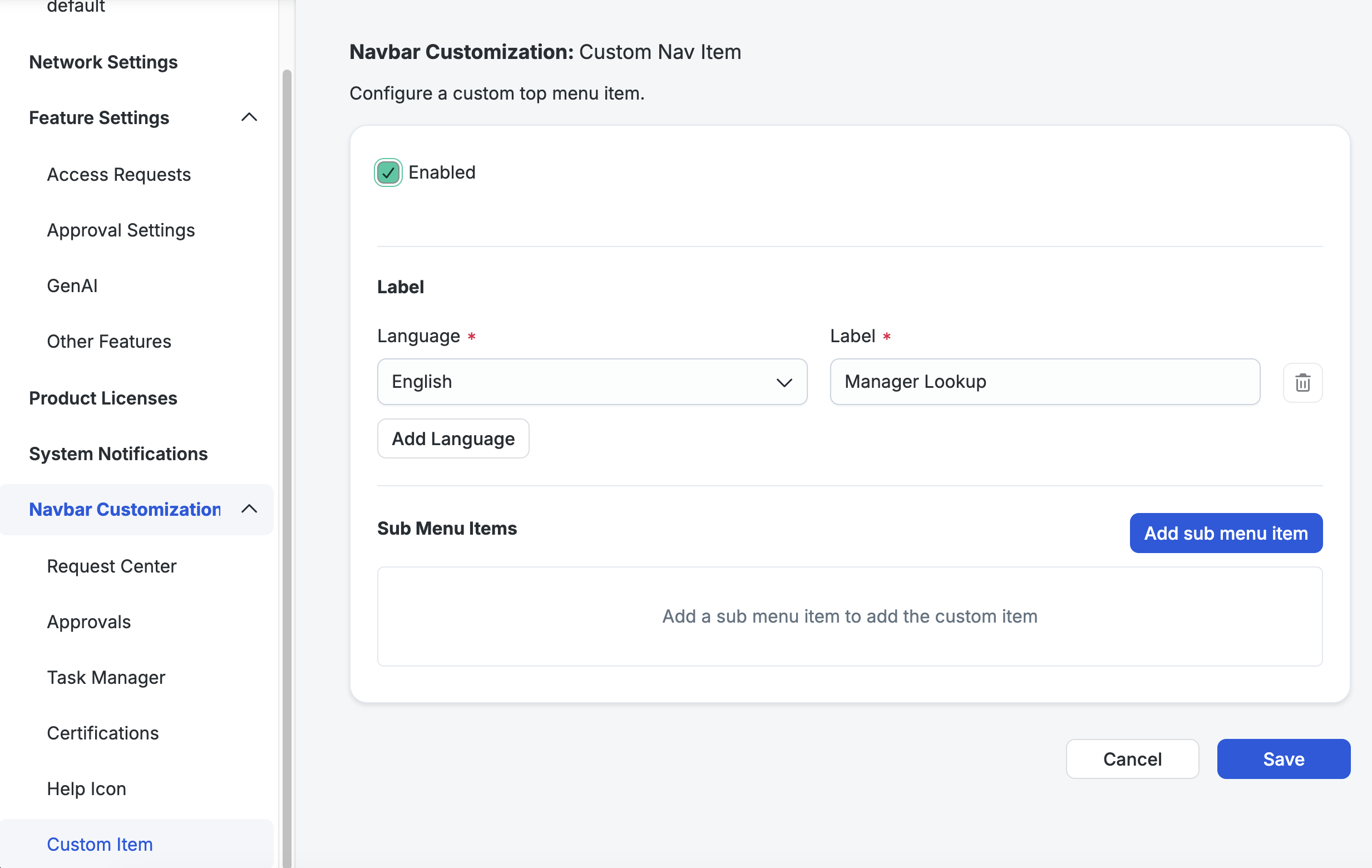
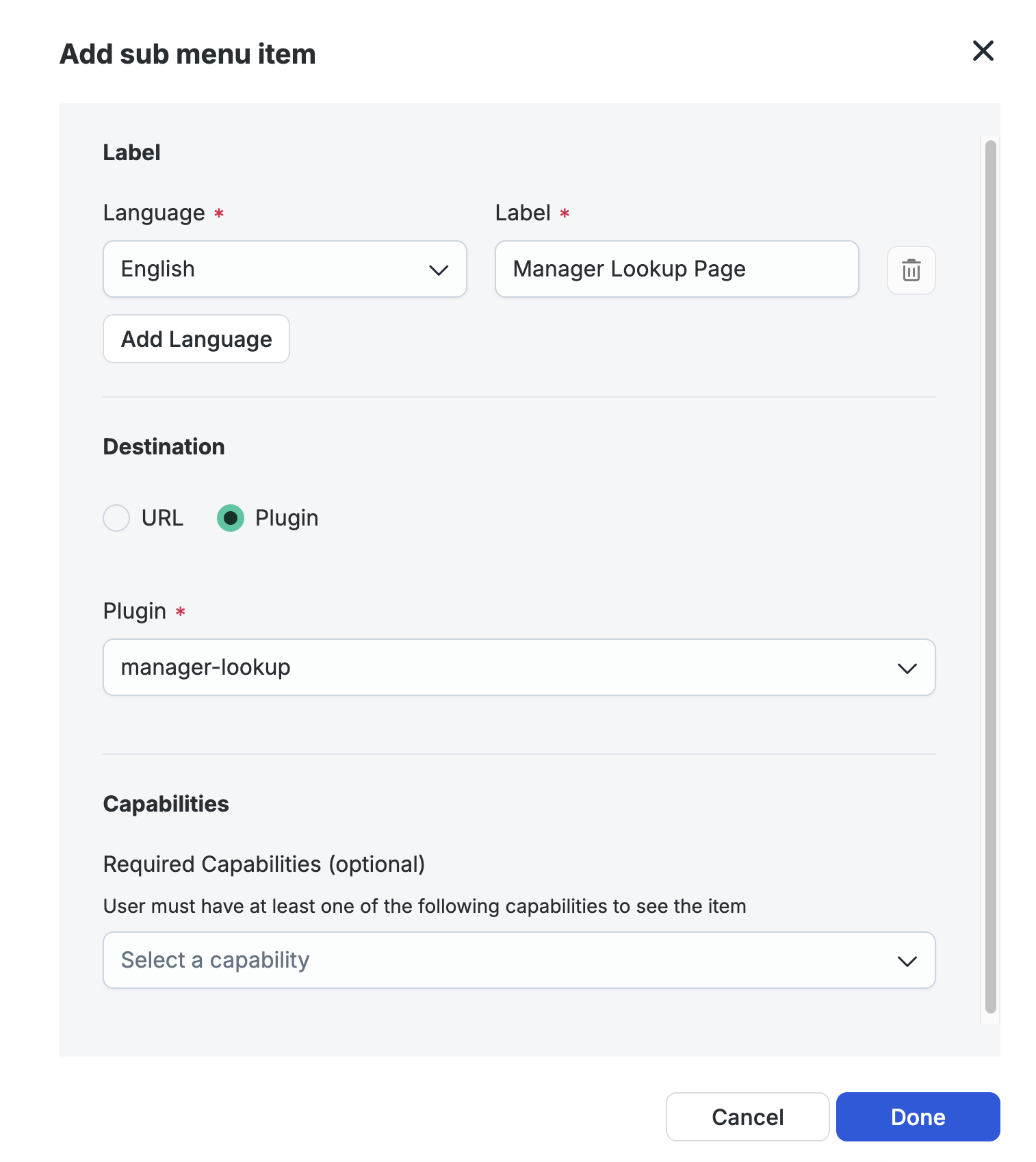
- In your tenant, go to Admin → Global → System Settings → Customize Navbar.
- Open Custom Item, and select the Enabled checkbox.
- For Language, keep English. For Label, enter
Manager Lookup. This is the name of the top menu. - Click Add sub menu item.
- In the dialog, enter
Manager Lookup Pageas the Label. This is the name of the item inside the menu. - For Destination, select Plugin. Then select
manager-lookup-[name]in the Plugin list. - Leave Required Capabilities empty, so every user sees the item. To limit the item to one audience, select a capability here.
- Click Done.
- Click Save.
Refresh your tenant. The nav bar shows a Manager Lookup menu, and the menu contains Manager Lookup Page. Click it, and your page opens inside SailPoint Identity Security.
10. Stretch goals
Pick whichever looks most interesting. Each one is something real plugins need to do.
Quick
- Add a name filter. Put a text input above the table and narrow the reports as the user types.
Use a third
computed()that reads a signal from the input. - Find the tokens you are not using. Every design token in
spds-prime-theme.tsis available in your CSS as--spds-<token-path>. Open your browser's dev tools, inspect any element the theme styled, and look at the variables it uses. This is faster than reading six thousand generated lines.
Medium
- Show the manager, not just the reports. Your page only has the manager's
managerRef, so it has no email, department, or title for them. Those are on the manager's own identity record, so you need a second call, such asgetIdentityV1. - Use more of PrimeNG. You have used six components so far. Add
p-toastso a failed lookup shows a notification, replace the managerp-selectwith ap-autocompletethat searches the API as you type, or usep-tabsto add a second view. Every component has a live example at primeng.org, and every one is already themed. - Stream the pages instead of collecting them.
Paginator.paginate()keeps every record in memory and emits once at the end. That is fine for a few thousand identities, but wasteful for a hundred thousand. UsePaginator.paginatePages()instead, which emits each page as it arrives.
Ambitious
- Show the whole chain. When the manager lookup works, notice that the manager has a
managerReftoo. Follow it upward with repeatedgetIdentityV1calls, and show the reporting line from the selected person to the top of the organization. Stop whenmanagerRefis null. - Ask the server instead. Replace the client-side filter with a real query. The search API can
filter by manager, which
listIdentitiesV1cannot. - Count them instead of listing them. Use
searchAggregateV1to get the number of reports for every manager in the tenant in one call, and show it as a list. One request replaces what would otherwise take hundreds.
UI Plugins: an in-depth look
You do not need this section to finish the track. It explains the scaffold files you did not write, which is why your code is so short and why the page looks like SailPoint Identity Security without extra styling.
| File | What it does for you |
|---|---|
src/app/core/sailpoint-plugin.service.ts | Runs the App Shell handshake and gives you the result as signals |
src/app/app.config.ts | Adds the API token to every SDK request, waits for the handshake before rendering, and sets up PrimeNG |
src/app/core/spds-prime-theme.ts | The SailPoint theme. It sets the colours, typography, and dark mode, and publishes them as --spds-* CSS variables |
See details: sailpoint-plugin.service.ts
This service creates the plugin SDK once, runs the handshake once, and gives you the result as signals you can read from anywhere:
| Signal | What it gives you |
|---|---|
context() | Tenant, signed-in user, and current page. Null until the handshake finishes. |
status() | pending, then either ready or failed. |
apiReady() | True when it is safe to make API calls. |
tenant(), user() | Shortcuts to parts of context(). |
You do not edit this file. You inject it and read the signals.
See details: app.config.ts
This file sets up three things, and all three are already done for you:
provideSailPoint(),
providePrimeNG({
  theme: {
    preset: spdsPrimePreset,
    options: { darkModeSelector: SPDS_DARK_MODE_SELECTOR, prefix: SPDS_THEME_PREFIX },
  },
}),
provideAppInitializer(async () => {
  await inject(SailpointPluginService).whenReady();
});
provideSailPoint()registers an HTTP interceptor that adds the plugin's token to every SDK request.provideAppInitializer()waits for the handshake to finish before Angular renders anything. This is why you can call the API as soon as your component exists.providePrimeNG()sets up PrimeNG, the component library SailPoint chose for UI plugins. It is installed and themed already, so when you write<p-select>you get a select that looks like SailPoint.
A future @sailpoint/sds package will replace the generated theme file with a published one. That is
what the TODO comment above providePrimeNG() is about.
See details: spds-prime-theme.ts
This is the theme that providePrimeNG() uses. It is six thousand generated lines, and its header
tells you not to edit it. Only the last two lines are worth reading:
src/app/core/spds-prime-theme.ts
export const SPDS_DARK_MODE_SELECTOR = '.spds-dark';
export const SPDS_THEME_PREFIX = 'spds';
The prefix is important. PrimeNG publishes every design token as a CSS variable, and the prefix sets
their names: --spds-text-color, --spds-text-muted-color, --spds-content-border-color,
--spds-primary-color, and so on. Use those in your stylesheet instead of choosing your own colours,
and your page stays in step with the theme. This is also why PrimeNG examples from the web can look
wrong here: they expect the default --p- prefix.
The theme also gives you:
- Typography. It sets the page font and styles
h1toh6, so headings need no CSS. It also includes.spds-h1to.spds-h6, with a--semiboldvariant of each, for when you want a heading's look on an element that is not a heading. - Dark mode. Everything has a dark variant, turned on by the
.spds-darkclass. This track does not use it.
The starter's own src/app/app.ts and src/app/app.html were a demonstration of the same pattern you
followed: PrimeNG components in the imports array, and a map from a state to a p-tag severity.
Take it to the main hack
You now know what a UI plugin does! It runs inside SailPoint Identity Security, it uses the signed-in user's session, and it can call SailPoint APIs with no extra authentication. Now, what do you want to build?
You can submit a UI plugin as your main hack. The judges score it with the same judging criteria as the MCP Server hack, and it can win the same prizes.
Start with a real problem. Think of a task that takes too many clicks in SailPoint Identity Security today, or a question that a manager, an auditor, or a help desk agent cannot answer easily. Then build the page that solves it.
Your plugin must meet the qualifying requirements in the judging criteria. It must use at least one SailPoint API, and you must be able to show it live in your tenant.
Documentation
The UI Plugins documentation is new. Until it ships to the docs site, read it on the preview build:
Still stuck?
Grab a SailPoint employee in the room, or reach for the community and tooling.